A jelly character that moves with five shapes instead of bones
Nov 1, 2026 · Art and sound · 한국어
The two 3D games I had made so far took their art from elsewhere. Tower Crane built boxes in code, and Rush 3D used a model pack that Kenney released under CC0 (previous post). For the third game, Jelly Jump, I made the hero myself in Blender. It's a one-button game: hold and the jelly squashes flat, let go and it stretches and hops to the next block.
The character in Rush 3D moves with a skeleton. Bones go into the arms and legs, and when a bone turns, the attached body follows. A jelly has no arms or legs. Its whole body squashes, spreads and wobbles. For that kind of motion it makes more sense to store several versions of the shape itself. Blender calls them shape keys; glTF and three.js call them morph targets. You keep a "squashed shape" and a "stretched shape" with the same vertex count as the base shape, and blend them with weights from 0 to 1. At weight 0.5 you get halfway between the base shape and the squashed one.
Built from formulas instead of dragging vertices
The body is a drop shape. The bottom half is a flattened hemisphere, and it narrows toward the top, ending in a small peak. It's 0.56 units wide and 0.6 tall, with 28 segments around and 16 rings up. Two eyes, two pink cheeks and one white highlight are merged with the body into a single mesh. Kept separate, the eyes would float in place while the body squashes. Colors are vertex colors, painted per vertex, instead of a texture. One material and no texture means it draws in a single draw call.
Shape keys are usually made by dragging vertices by hand. This time I used Blender's Python API (bpy) and wrote formulas that take each original vertex position and return a new one. The squashed shape scales the height to 0.55 and pushes outward most around the middle height. With formulas, changing one number regenerates the shape, and the eyes and cheeks follow the same formula as the body. A simplified example:
import bpy, math
from mathutils import Vector

ob = bpy.data.objects['jelly']
H = 0.6  # body height
ob.shape_key_add(name='Basis')
rest = [v.co.copy() for v in ob.data.vertices]

def add(name, fn):
    key = ob.shape_key_add(name=name, from_mix=False)
    for i, p in enumerate(rest):
        key.data[i].co = fn(p)

def squash(p):  # flatter, wider around the middle
    t = p.z / H
    s = 1.12 + 0.42 * math.sin(math.pi * min(t * 1.1, 1)) ** 0.8
    return Vector((p.x * s, p.y * s, p.z * 0.55))

def stretch(p):  # taller and thinner
    return Vector((p.x * 0.78, p.y * 0.78, p.z * 1.45))

add('squash', squash)
add('stretch', stretch)
I made five this way: squash for charging, stretch for jumping, wobbleL and wobbleR for swaying left and right, and splat for spreading out on the floor.
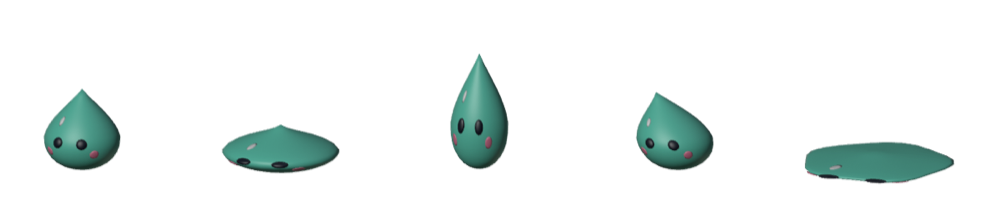
Animations are keyframes that change these weights over time. I made four at 30fps: idle for the squishy wait, land for the landing wobble, fall for flapping while falling, and splat for hitting the floor. If each animation gets its own track in Blender's NLA editor, the glTF export turns each track into one animation named after the track.
Charging and stretching in the air are not animations. How far the jelly squashes depends on how long the player holds, and a pre-made animation can't match that. For these two, the game code sets the weights directly every frame. In three.js you write numbers into the mesh's morphTargetInfluences array, and morphTargetDictionary tells you which slot belongs to which key by name.
let mesh = null;
model.traverse((o) => { if (o.isMesh && o.morphTargetInfluences) mesh = o; });
const index = mesh.morphTargetDictionary; // { squash: 0, stretch: 1, ... }

function charge(seconds) {
  const w = Math.min(seconds / 1.2, 1); // full squash after 1.2 s
  mesh.morphTargetInfluences[index.squash] = w;
}
The default shape had all five stacked on
When I opened the first exported glb, the mesh's default weights were [1, 1, 1, 1, 1]. In glTF those are the values used when no animation is playing. Left like that, the jelly would take a shape with all five added together whenever its animation stopped.
Blender's glTF exporter uses whatever values the shape keys hold at the moment of export as the default weights. I had reset them all to 0 before exporting. But with animations on NLA tracks, the exporter evaluated the scene and the track values came back in; at the frames around the tracks they read as 1.
So I made a one-frame animation, rest, with every weight at 0, put it on the bottom track, and set it to hold its value after the track ends (HOLD). On frames where no other animation plays, this track pins the values to 0. Exporting again gave default weights of all 0. rest is only needed for export, so it's dropped from the animation list when the model file is packed.
The game had its own place where animations and directly set weights collide. three.js's animation mixer overwrites all five weights every frame with the values of whatever animation is playing. If the landing animation is still on when the charge value goes in, it gets wiped before drawing. So the game stops the animation before setting weights directly. At first the shared animation helper had no stop, so I stopped the mixer by hand; later I added a stop function to the helper.
After all this, the model has 642 vertices and 1260 triangles. The exported glb was 115KB, and the packing step brought it to 77KB by storing vertex positions and shape key data as 16-bit integers instead of 32-bit floats.
The landing spread out too much
Once it was in the game, the jelly seemed to spread out wide for an instant on landing. It was too fast to tell by eye whether that was the intended wobble. I ran game time 4× slower and printed the weights for a few frames around the landing.
- Just before landing: squash 0, stretch 0.25
- First frame after landing: squash 0.81, stretch 0.02
- Following frames: squash 0.27 → 0, stretch 0.27 → 0.35
The jelly, stretched in the air, was almost fully squashed within one frame. 0.81 is about as flat as a nearly full charge. The cause was the first key of the land animation, which I had set to squash 0.85. The game was also switching from the air shape to land instantly, with no blending.
I lowered the first key of land to 0.12 and made it rise to 0.45 two frames later. The rebound stretch and the second squash went down to 0.2 and 0.15. In the game code, switching to land now blends over 0.05 seconds. Measured the same way, the flattest moment dropped from 0.81 to 0.44. The jelly now squashes a little while staying round, then comes back.
I timed the sound to the motion the same way. While you hold, a short tone rises a little every 0.1 seconds, so you can hear how much power has built up. Landing in the center of blocks in a row raises the pitch one step at a time. The losing sound used to play when the landing spot was decided, which is the moment of the jump. The jelly was still in the air and the game-over sound came first, which felt off. I moved that sound and the vibration to the moment the jelly hits the floor and splats.
Matching export settings, packing and checking after every Blender edit got tedious, so I wrapped it in one command. It launches a separate Blender with no window (--background), opens the saved .blend, exports the glb with fixed settings and shape key values at 0, then packs the model and runs the checks. It warns if the exported default weights aren't 0. On the jelly it takes 1.8 seconds, and the result was byte-for-byte identical to a manual export.
node tools/art/export-blend.mjs jellyFive shapes and no bones were enough to make the character feel alive. Blending them was harder than making them, though. One weight jumping too high looks wrong right away, and it happens too fast to catch by eye. Slowing things down and printing the numbers was the quickest way.
References
- Blender Manual, Shape Keys: https://docs.blender.org/manual/en/latest/animation/shape_keys/introduction.html
- Blender Manual, glTF 2.0 export: https://docs.blender.org/manual/en/latest/addons/scene_gltf2.html
- Khronos glTF Tutorial, Simple Morph Target: https://github.khronos.org/glTF-Tutorials/gltfTutorial/gltfTutorial_017_SimpleMorphTarget.html
- three.js, Mesh (morphTargetInfluences): https://threejs.org/docs/pages/Mesh.html
- Blender Manual, command line arguments: https://docs.blender.org/manual/en/latest/advanced/command_line/arguments.html
Games from this post
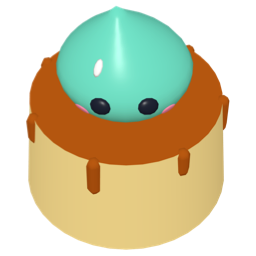 Jelly JumpA squishy jelly squashes down, builds power and boings onto the next dessert block. The longer you hold, the farther it jumps.
Play
Jelly JumpA squishy jelly squashes down, builds power and boings onto the next dessert block. The longer you hold, the farther it jumps.
Play
More posts
- Rolling a 3D die without a library and stopping on the face you want Nov 1, 2026
- The board flashed on iPhone every time a card moved Nov 1, 2026
- The 3D model's textures came out white Oct 30, 2026
- Fitting three.js into a 2D game kit Oct 30, 2026
- Switching a mode button made the whole board wobble Oct 26, 2026